
The majority of the pages on your eCommerce site are automatically controlled by the site theme (for example, Product Pages). However, there are a handful of pages that can be edited if you need to update content (e.g. Terms and Conditions, Privacy Policy, About Us). You can also add basic content pages when needed to your site.
Viewing Pages
Sign into your eCommerce admin panel. In the left-hand menu, navigate to Content Management > Topics (pages).

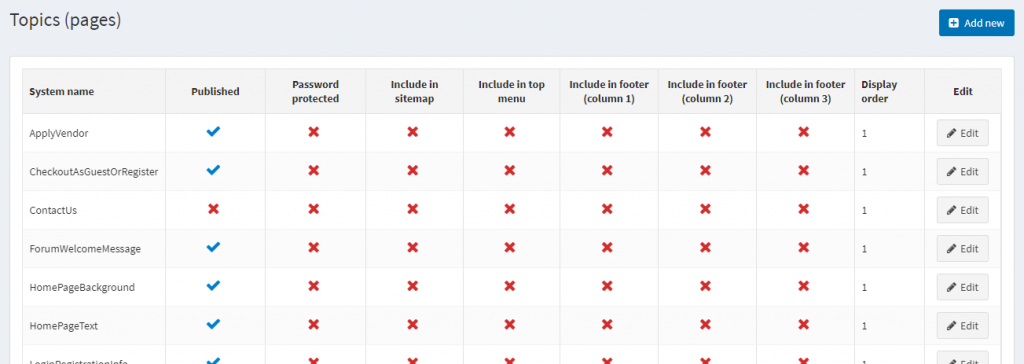
Here you’ll see a list of all the pages on your site. It is important to note that that some of these Topics/Pages control only portions of a page’s content (e.g. The HomePageText topic controls the content that appears on the hero banner of the home page).
Adding or Editing a Page
In the top right hand corner of the Topics screen, click “Add New” to create a new page. If you wish to edit an existing page, click the “Edit” button to the right of the page you wish to edit. Then, fill in the necessary info for your page. Below we’ve outlined a few specific fields related to pages that you should be aware of.
- Basic
- Title – The title of your page.
- Body – The body of your page and the primary content you want to communicate to users.
- Include in top menu – Check to include a link to this page in the main navigation.
- Include in footer (Column 1-3) – Check to include a link to this page in the footer. You can choose from 3 predetermined columns.
- Advanced
- System Name – The system name for your page. This determines how it appears in the backend of the site.
- Published – Check to have the page visible on the site. Uncheck to have the page invisible on the site.
- Password Protected – Check to have the page require a password to be accessed.
- Include in sitemap – Check to include in the sitemap. This is beneficial for the page to appear in online search results.
- Customer Roles – Select customer roles for which the topic will be shown. Leave empty if you want this page to be visible to all users.
- Display Order – Determines the priority in which this page is displayed in the relevant menu (if applicable). 1 represents the first item in the list.
Click “Save” or “Save and Continue Edit” when finished editing.