
This article explains how to add or edit product Categories in your store via the eCommerce admin panel. Categories are helpful in grouping specific products under one page. Please note there are two “types” of products in RideStyler eCommerce: Managed Products and Custom Products.
In short, Managed Products are automatically managed by RideStyler and do not need to be edited in the eCommerce admin panel. The Categories for these products (Wheels, Tires, Lug Kits and Hub Rings) are also pre-defined. Custom Products and their associated Categories, on the other hand, can be added and edited by you directly in the admin panel.
Viewing Categories
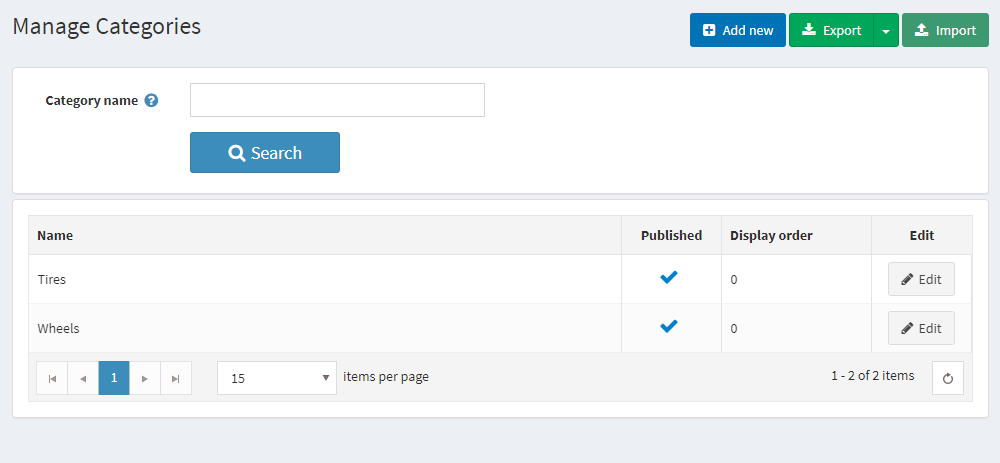
Sign into your eCommerce administrator panel. In the left-hand menu, navigate to Catalog > Categories.

From this screen you can view a list of existing categories.
Add or Edit a Category
Click the “Add New” button at the top right of the page to create a new category, or click the “Edit” button to the right of the category you wish to edit. Below we’ve outlined a list of key fields that you can edit for each category.
- Basic
- Name – The category’s name.
- Description – The description of the category.
- Parent Category – Select a parent category for this category. Leave this field empty to make it the root category.
- Display Order – Set this category’s preferred position when displayed in the nav or footer. 1 Represents the top of the list.
- Advanced
- Show on home page – Check if you want to show a category on the home page.
- Included in top menu – Display in the main navigation. If this category is a subcategory, then ensure that its parent category also has this property enabled.
- Discounts – Select discounts to apply to this category. You can manage discounts by going to Promotions>Discounts.
- Limited to customer roles – Select customer roles for which the category will be shown. Leave empty if you want this category to be visible to all users.
- Published – Check to publish this category (visible on site). Uncheck to unpublish (category not available on site).
Click “Save” or “Save and Continue Edit” when finished editing.
Additional Category Information
There are additional tabs that provide more features when working with categories.

- SEO – See the SEO section for details.
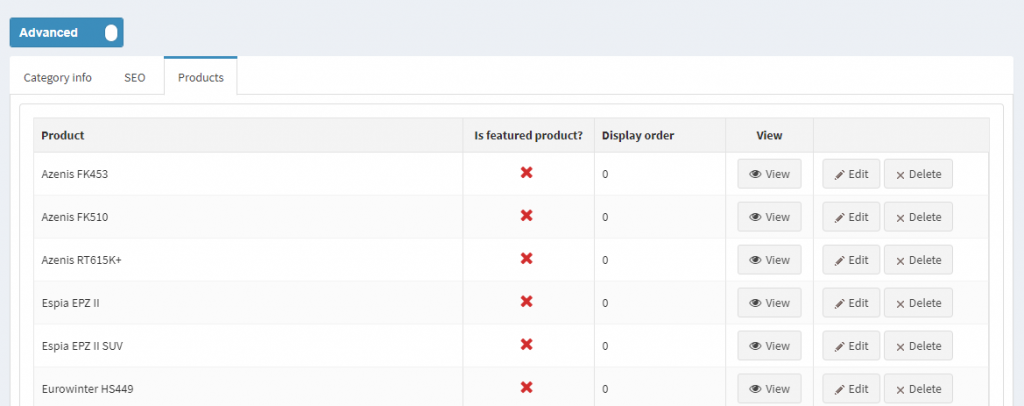
- Products – View the products associated with this category.
- View – Go to the details page of the specific product.
- Edit – Adjust the “Display Order” or check if the product is “Featured.”
- Delete – Remove this product from the current category.
Adding a Product to Your Category
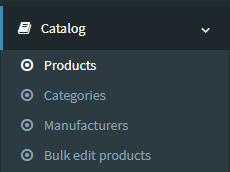
In the left-hand menu, navigate to Catalog > Products.
Click the “Edit” button to the right of the product you wish to change.
Under the “Mappings” section, click the Categories field to add your category to a product.
