
This article explains how to add or edit products in your store via the eCommerce admin panel. Please note there are two “types” of products in RideStyler eCommerce: Managed Products and Custom Products. In short, Managed Products are automatically managed by RideStyler and do not need to be edited in the eCommerce admin panel. Custom Products, on the other hand, can be added and edited by you directly in the admin panel.
Managed Products
One of the benefits of RideStyler eCommerce is that the majority of product management is taken care of automatically. Wheels, tires, lug kits and hub rings, essentially any product that takes advantage of RideStyler’s fitment recommendations, are all imported directly into RideStyler (for wheels and tires specifically, we work directly with distributors and manufacturers to ensure data is available).
For the brands you’ve enabled on your RideStyler account, all of the product data is automatically synced into your eCommerce store on a nightly basis. This means that there is no need to make changes to any of these managed products in the eCommerce admin panel (if you do, it will be overwritten on the next nightly sync).
Custom Products
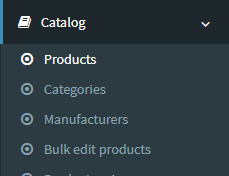
Sign into your eCommerce administrator panel. In the left-hand menu, navigate to Catalog > Products.
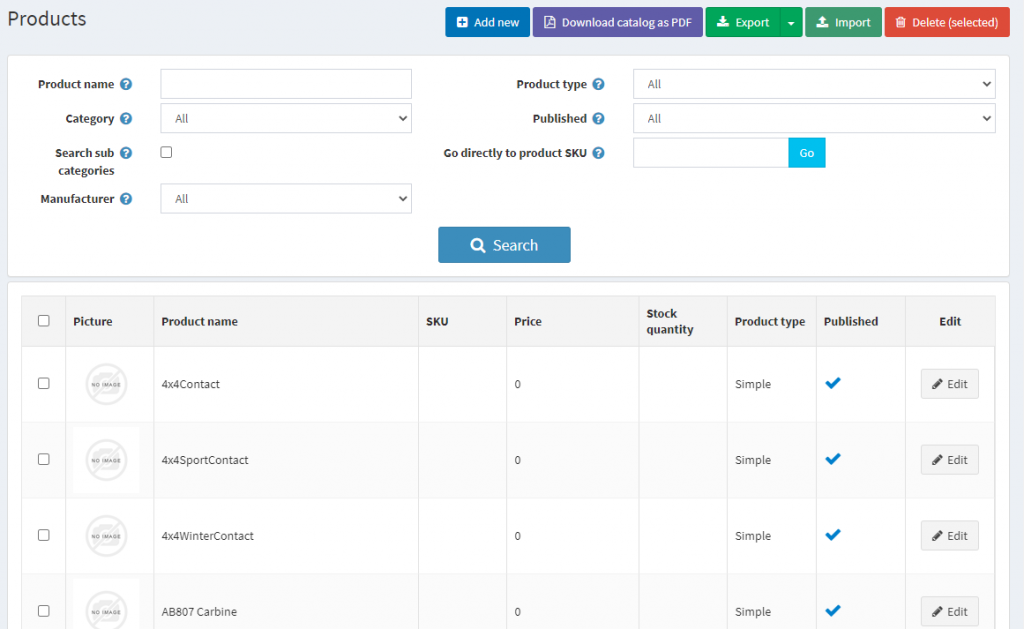
Here you’ll see a list of all the products available on your store. You can apply filters or search for specific products to narrow down the list. Again, any products that are managed automatically in RideStyler do not need to be edited, but you can view, add or edit additional products.
Adding or Editing a Product
To add a new product, click the “Add New” button at the top of the Products page. If you wish to edit a product you have already created, click the “Edit” button to the right of that product.
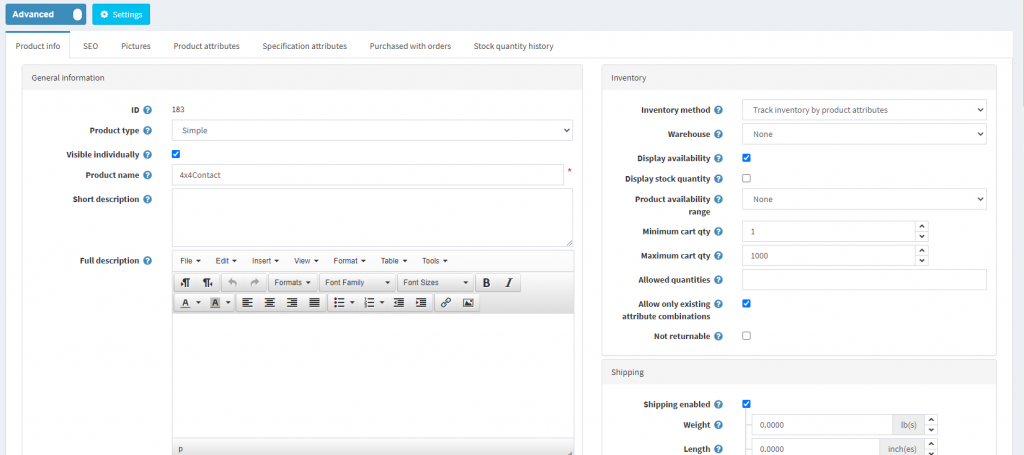
When you are finished adding or editing all of the products information, click “Save” or “Save and Continue Edit”.
Bulk Editing Products
If you wish to edit multiple products at one time, the RideStyler Ecommerce platform offers a bulk editing option.
In the left-hand menu, navigate to Catalog > Bulk Edit Products.
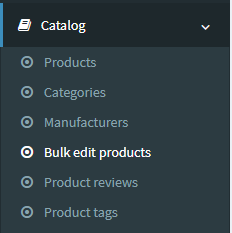
Select the field you wish to edit to bring up the column editor. The options available on this page are SKU, Price, Old Price, Stock Quantity, Published, or Delete.

Click “Save Changes” when you are finished editing.
