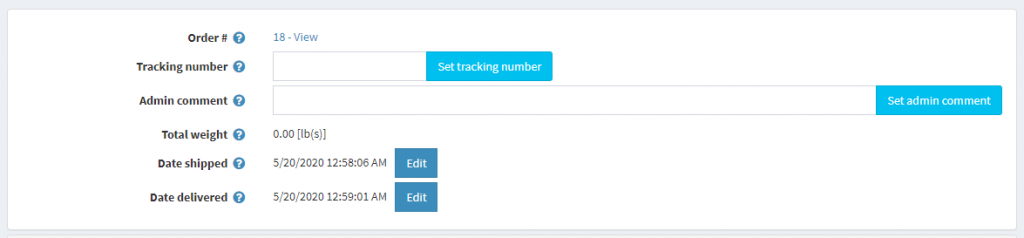
Shipments can only be created once an order has been placed. This article will show you how to create shipments for orders and how to manage shipment details to keep your customers up to date..
Adding a Shipment to an Order
Sign into your eCommerce administrator panel. In the left-hand menu, navigate to Sales > Orders.

Click the “View” button to the right of the order you’re working on, and on the Order Details screen, click on the Shipping Info tab.

At the bottom of this screen, click the “Add Shipment” button.

Add shipment information, and click “Save” or “Save and Continue”.
- Tracking Number – If you have a tracking number at this point, you can add it in the available field. You will have an additional opportunity later in the process to add a tracking number as well.
- Admin Comment (Optional) – These comments are not shared to the customer. They can be viewed in the backend by admin users.
- Quantity to Ship – The item quantity included in the shipment being created.

Update Shipment Status
Once a shipment is created, you will need to manually edit the shipment to reflect its current status. This section will show you how to set a shipment as Shipped or Delivered.
In the left-hand menu, navigate to Sales > Shipments.

Click the box next to any shipment you wish to edit.
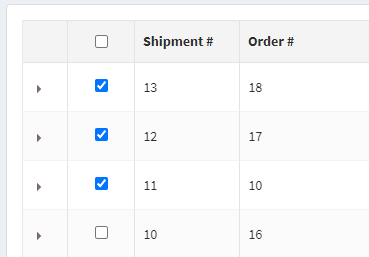
Click the “Set as Shipped” or “Set as Delivered” buttons in the top right corner of the page to update the statuses of all checked shipments.

Edit Shipment Information
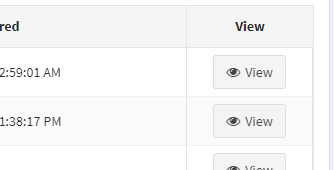
If necessary, you can also adjust any information related to a shipment. From the Shipments page, click the “View” button to the right of the shipment you wish to edit.
Edit or add any necessary information. This is another opportunity to add a tracking number.