
Every customer that makes a purchase on your website, as well as any administrator to whom you grant access, will have a unique user account. This article will provides an overview of how to view, create, edit and manage the data associated with user accounts. Sign into your eCommerce administrator panel.
Viewing User Accounts
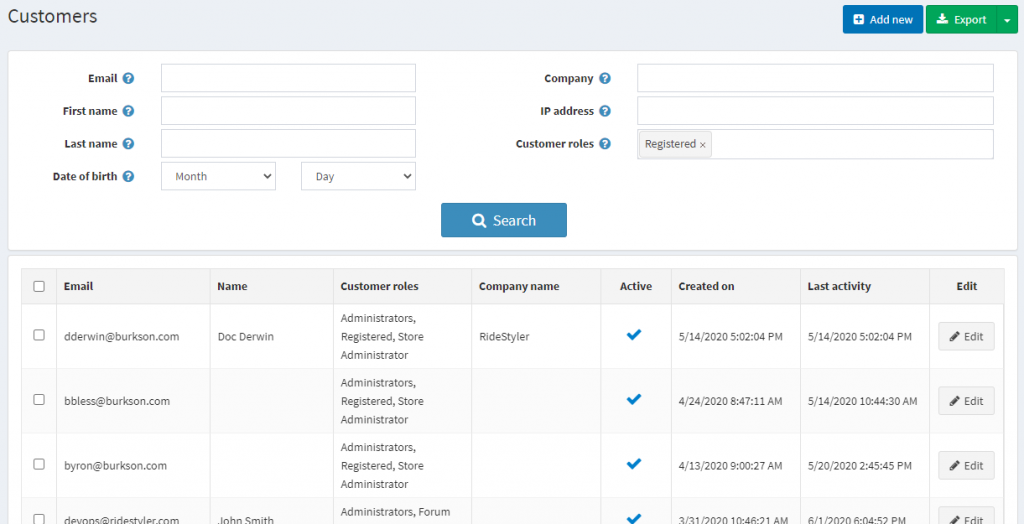
Sign into your eCommerce administrator panel. In the left-hand menu, navigate to Customers > Customers.

Here you’ll see a list of all the user accounts on your site. You can search for a specific account using the fields at the top of the screen, and Edit any user account in the list (see User Information later in this article).
Creating a User Account
In the top right-hand corner of the Customers page, click “Add New” to create a new Customer account.
Basic User Information
When editing an existing user account, or creating a new account, you can fill in the following information:
- General Information – Name, Email, Password, Address, and other standard information about the customer.
- Customer Roles – Choose the customer roles this user fits into. This is used to grant specific privileges to the user (for example when you want to give someone on your team admin privileges).
- Is tax exempt – Check to allow this user to be tax exempt when making purchases.
- Newsletter – Check to have this user subscribed to your site’s newsletter.
- Active – Denotes whether a customer’s account is active. To disable/suspend a customer’s account, uncheck this.
Click “Save” or “Save and Continue Edit” when finished editing.
Additional User Data
These additional tabs are not available until the user account is fully created.

- Orders – View the customer’s order history.
- Addresses – View the customer’s addresses or add a new one to their list.
- Current Shopping Cart – View the customer’s current shopping cart.
- Activity Log – See the range of activity the user performed. This mainly pertains to Admin/Backend users (e.g. Edited a product, Edited an order).
- Place Order (Impersonate) – Allows you to impersonate a user’s account and use the site as if you were them. This can be helpful when providing phone support or if you need to place an order for a customer.