
The RideStyler Visualizer offers a Shopify integration feature which allows your customers to add products from the visualizer to their cart. By default, the Shopify integration is disabled, but turning the feature on is easy – just follow the steps in this article!
Creating a Private Shopify App
1. The first thing you’ll need to do is create a new private app in your shopify shop.

2. After filling your private app’s general info make sure that you have enabled access to the Storefront API. This is what the Shopify integration uses to communicate with your shop’s products. Once you’ve enabled access to the Storefront API copy the Storefront access token.
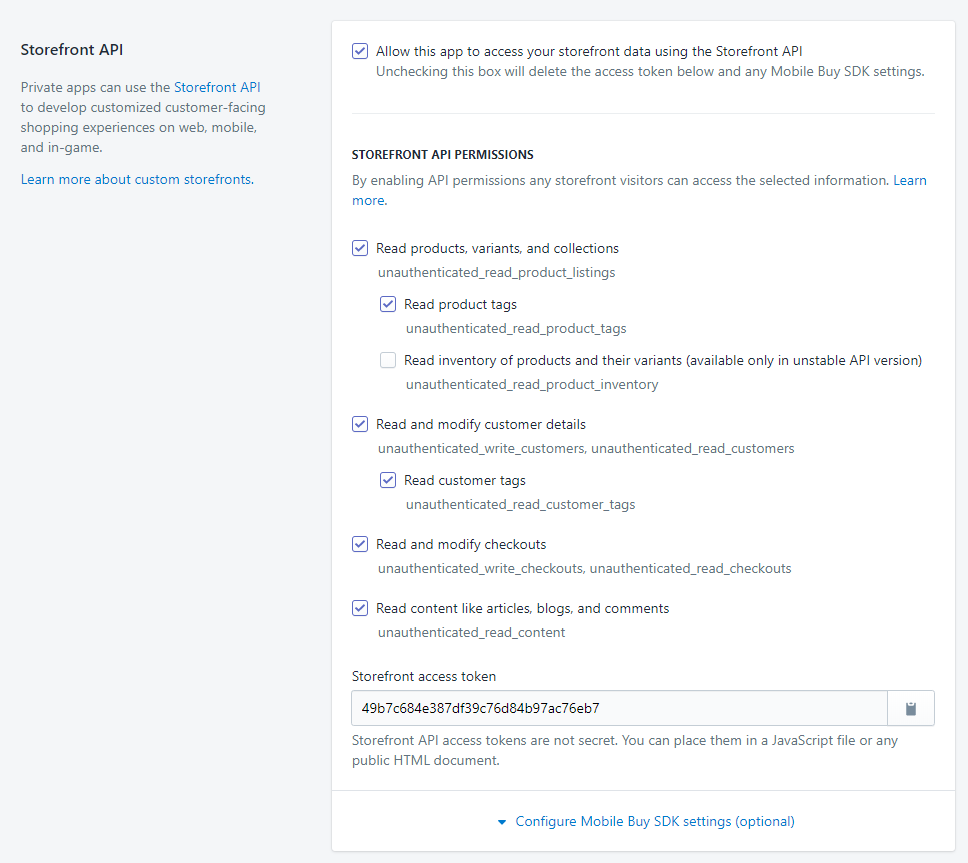
Now that we have everything we need from your shop, we can activate the integration in the user portal.
Enable Shopify Integration
1. Login to account.ridestyler.com and then navigate to the Visualizer product dashboard (Marketing > Visualizer).
2. On the left-hand menu on the Visualizer product dashboard, click on Integrations.
3. At the top, you’ll see a list of any Active Integrations you already have enabled. Below that, you’ll see a list of Available Integrations that you can turn on.
4. Find Shopify in the list of Available Integrations, and then click the Activate button. First you’ll need to add the URL of the shopify site your visualizer is integrated on. Lastly, paste the Storefront Access Token that we copied earlier into the accessToken parameter and hit the Activate button.
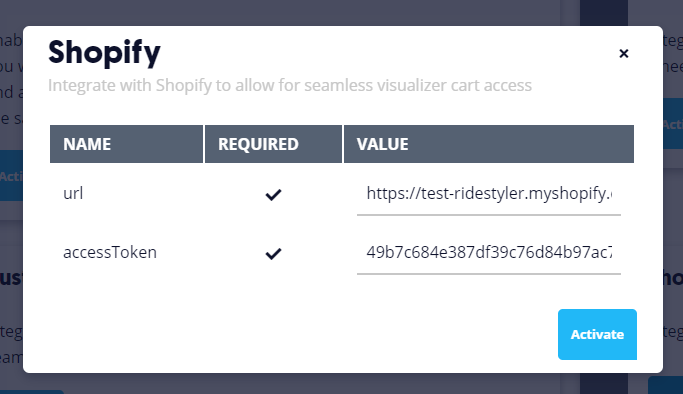
5. You’re all done! Now when you launch the Visualizer on your Shopify website, you should see a new Add to Cart button when a product is selected.