
The RideStyler Visualizer offers a WooCommerce integration feature which lets you allows your customers to add products from the visualizer to their cart. By default, the WooCommerce integration is disabled, but turning the feature on is easy – just follow the steps in this article!
Adding products to your shop
When adding products to your WooCommerce shop, make sure the SKU / part number for each product matches up with the products that you’ve enabled on your visualizer (by default, RideStyler uses manufacturer part numbers). Once you’ve completed this step you’re ready to add RideStyler’s WordPress plugin to your site.
Adding the WordPress Plugin
1. The first thing you’ll need to do is add the RideStyler plugin to your WordPress website. You can do this by uploading the zip in the step below.

2. You can access the files for the RideStyler plugin by downloading the RsWordpressPlugin.zip file.
3. Now that you have uploaded our plugin. Make sure it’s activated.

4. Once you’ve confirmed your plugin is activated we can go ahead and activate our integration on the account portal.
Enable WooCommerce Integration
1. Login to account.ridestyler.com and then navigate to the Visualizer product dashboard (Marketing > Visualizer).
2. On the left-hand menu on the Visualizer product dashboard, click on Integrations.
3. At the top, you’ll see a list of any Active Integrations you already have enabled. Below that, you’ll see a list of Available Integrations that you can turn on.
4. Find WooCommerce in the list of Available Integrations, and then click the Activate button. All you’ll need is the URL of the WordPress site your visualizer is integrated on.
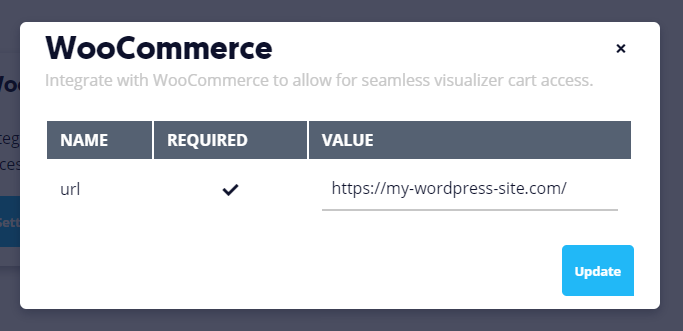
5. You’re all done! Now when you launch the Visualizer on your WordPress website, you should see a new Add to Cart button when a product is selected.