This article provides steps for enabling the Visualizer integration with TireConnect, a 3rd party tire sales tool. This is a great way to provide a more seamless experience for customers if you’re already using the TireConnect platform.
If you’re not using TireConnect, the RideStyler Visualizer also has built-in support for tire recommendations and package building – all you need to do to get started with this is enable at least 1 tire brand on your account.
Enable TireConnect Integration
1. Login to account.ridestyler.com.
2. Navigate to the Visualizer product dashboard. Once there, click on the Integrations tab at the top of the page.
3. At the top, you’ll see a list of any Active Integrations you already have enabled. Below that, you’ll see a list of Available Integrations that you can turn on.
4. Find TireConnect in the list of Available Integrations, and then click on the Activate button.
5. Next, you should see a pop-up window asking you for a URL. Here you will need to enter the URL for the page on your site where you TireConnect plugin is located. Once you’ve entered this URL, click Activate.
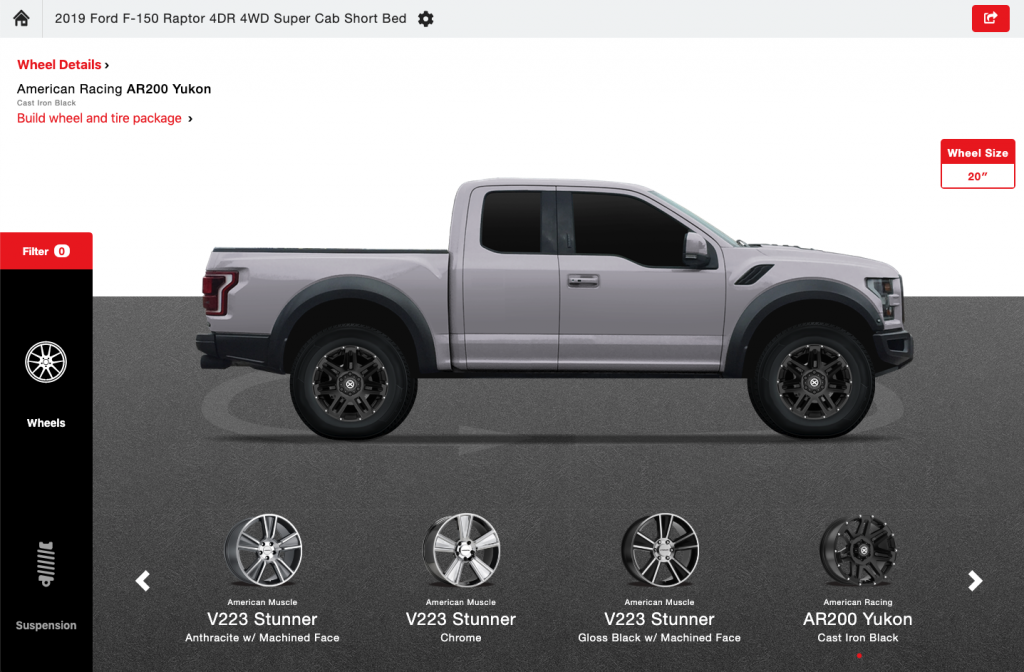
6. You’re all done! Now when customers find a wheel they like in the Visualizer, they’ll see an additional option appear under their selected wheel details to “Build wheel and tire package.” Clicking this will take them to the TireConnect tool, but their selected vehicle and wheel information will be transferred along with them.