
You can easily add the RideStyler media gallery to your website by embedding it using the following steps:
1. Login to account.ridestyler.com and navigate to the Media Gallery product dashboard (Marketing > Gallery).
3. Create a gallery if you haven’t yet. Once you’ve done that click “view gallery” to get to the embed settings.

4. Click on the Embed tab, copy the Embed Code using the button or by highlighting the code snippet and manually copying it. Make sure to enable any of the gallery settings before you copy the embed code or they wont be present on your website.
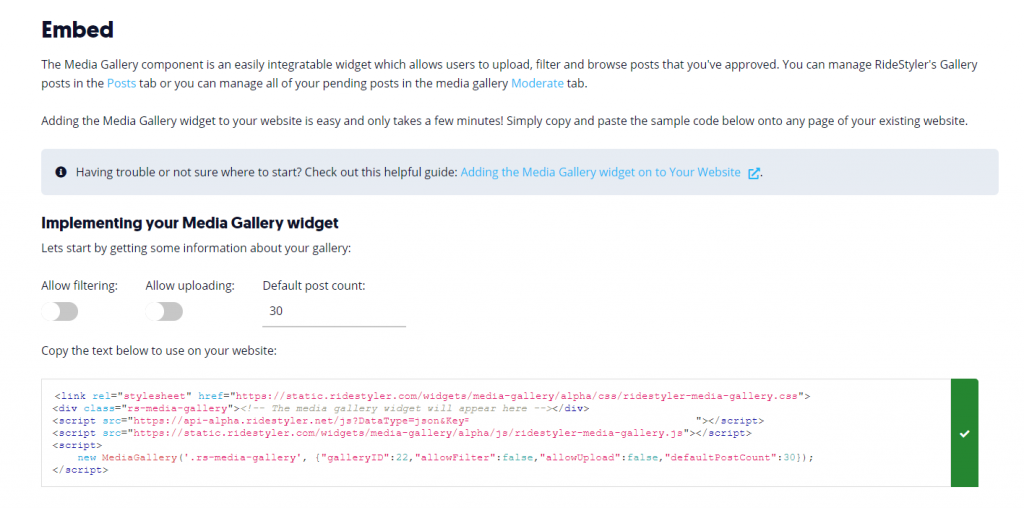
5. Copy the link element and add it to the head of your page:
<head>
    <link rel="stylesheet" href="https://static.ridestyler.com/widgets/media-gallery/alpha/css/ridestyler-media-gallery.css">
</head>
6. Add the scripts to the body of your page:
<body>
    <script src="https://api-alpha.ridestyler.net/js?DataType=json&Key=YOUR-API-KEY"></script>
    <script src="https://static.ridestyler.com/widgets/media-gallery/alpha/js/ridestyler-media-gallery.js"></script>
</body>
7. Finally add a container to the page where you want the media gallery to show up and add a JS call to your page to tell the media gallery where to add itself by calling MediaGallery.create and passing it a selector to identify the container.
<body>
    <div class="rs-media-gallery"><!-- The media gallery widget will appear here --></div>
    <script src="https://api-alpha.ridestyler.net/js?DataType=json&Key=YOUR-API-KEY"></script>
    <script src="https://static.ridestyler.com/widgets/media-gallery/alpha/js/ridestyler-media-gallery.js"></script>

    <script>
        MediaGallery.create('.rs-media-gallery', {"galleryID":22,"allowFilter":false,"allowUpload":false,"defaultPostCount":30});
    </script>
</body>
The media gallery will be inserted into the div with the rs-media-gallery class.