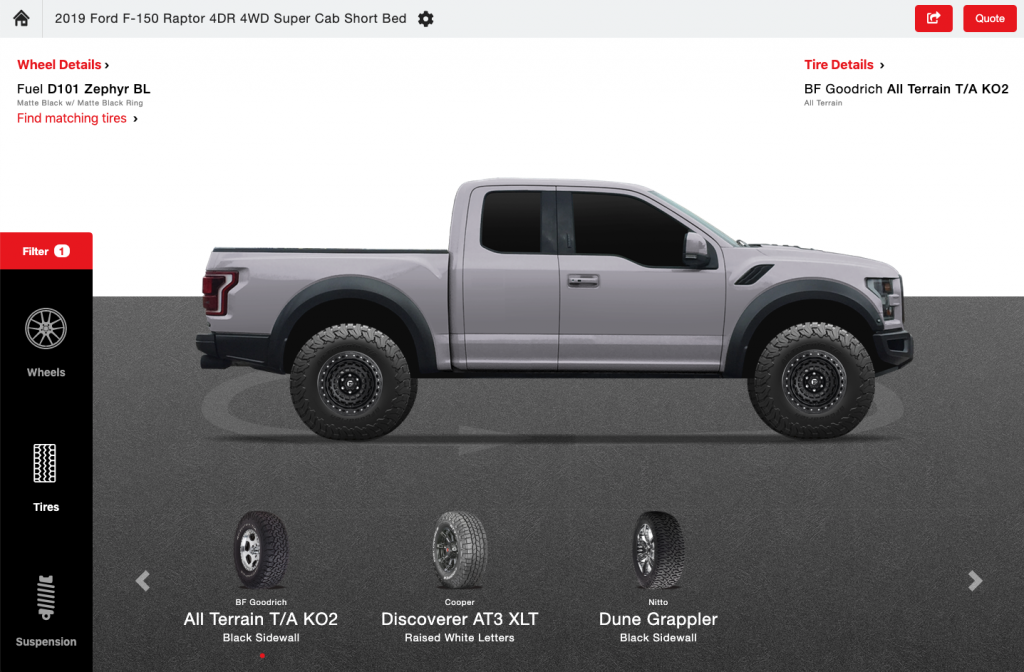
The RideStyler Visualizer offers a Request a Quote feature which lets you capture detailed information from your customers, to ensure you’re effectively capitalizing on opportunities. By default, Request a Quote is disabled, but turning the feature on is easy – just follow the steps in this article!
Getting Started
The first thing you’ll need to do is setup your Sales contact email for receiving quote requests. The process for doing so will vary depending on if you want all quotes to go to a single email, or if you want to let your customers choose one of your retail locations from which to request their quote. Both options are outlined below – just follow the steps for the method you want to use.
One Sales Email for All Quotes
1. Login to account.ridestyler.com.
2. In the left-hand menu, click on Company and then click on Information.
3. Review the Sales email that is set for your account. If this is the correct email, then you’re all done with this part, and can skip to the Enable RequestQuote Integration section of this article.
Sales Emails for Multiple Locations
If you’ve previously added your retail/dealer locations to your RideStyler account, then you should be all set and can continue to the next section of this article.
Enable RequestQuote Integration
1. Navigate to the Visualizer product dashboard (Marketing > Visualizer).
2. Click on the Integrations tab at the top of the page..
3. At the top, you’ll see a list of any Active Integrations you already have enabled. Below that, you’ll see a list of Available Integrations that you can turn on.
4. Find RequestQuote in the list of Available Integrations, and then click the Activate button.
5. You’re all done! Now when you launch your Visualizer, you should see a new Quote button in the top right-hand corner. We recommend submitting a test quote to make sure you are receiving it at the expected email address.