
The Vehicle Quick Select widget allows you to embed a compact vehicle selection form onto any page of your existing website. After a user makes a selection, they’ll be taken to product results for that vehicle inside your Visualizer. You can easily add this widget to your website using the steps below.
1. Login to account.ridestyler.com.
2. Navigate to the Visualizer product dashboard (Marketing > Visualizer), and then click on the Widgets tab at the top of the page.
3. Under the Implementing your Quick Select widget section you will need to input the URL on your website where where your Visualizer is located – this will tell the widget where to send users after a vehicle has been confirmed. If you want to utilize our default styling for the widget, then toggle the “Include Styling” option (if you leave this disabled, you can manually include your own custom styles).
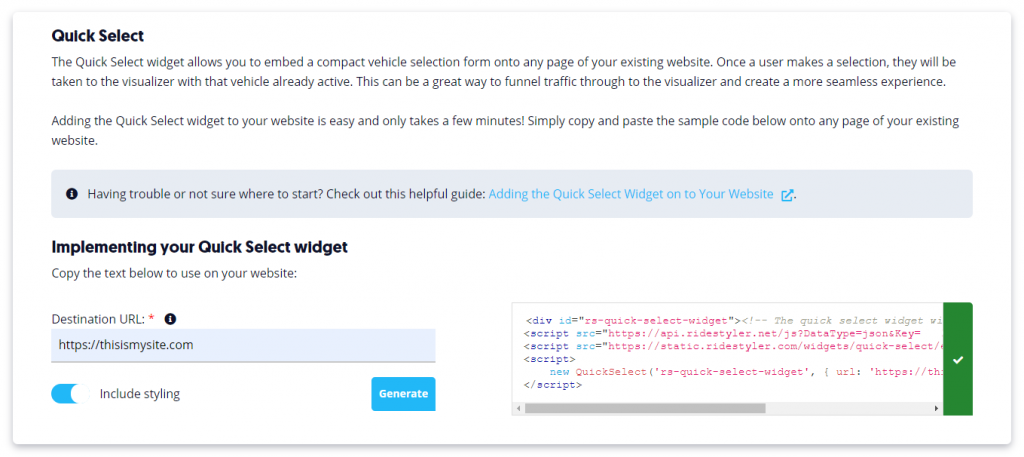
4. Next, click on the Generate button and copy the scripts that appear to the right.
5. Add the scripts to the body of your page:
<body>
    <script src="//api.ridestyler.net/js?DataType=json&Key=YOUR_KEY"></script>
    <script src="//static.ridestyler.com/widgets/quick-select/edge/js/QuickSelect-min.js"></script>
</body>
6. Add a container to the page on your website where you want the widget to show up. You’ll also need to add a Javascript call to your page to tell the widget where to add itself by calling new QuickSelect('rs-quick-select-widget') and passing it the id of the container. Finally, you’ll want to add the url of the page where your Visualizer is initialized as a setting, so we know where to send your users after they confirm their vehicle selection.
<body>
    <div id="rs-quick-select-widget"><!--- Your widget will appear here --></div>
    <script src="//api.ridestyler.net/js? DataType=json&Key=YOUR_KEY"></script>
    <script src="//static.ridestyler.com/widgets/quick-select/edge/js/QuickSelect-min.js"></script>

    <script>
        new QuickSelect('rs-quick-select-widget', {url: 'https://your-url.com'});
    </script>
</body>
The Quick Select widget will be inserted into the div with the rs-quick-select-widget id.
Custom Styling
The Quick Select widget does not come with any default styling, so you can style the widget to your liking. If you don’t want to go through the hassle of styling the widget yourself, there is an option to include our custom styles – just switch the “Include styling” to the on position when generating the code for your widget. Alternatively you can add the setting below to your Quick Select initialization call.
<script>
    new QuickSelect('rs-quick-select-widget', {url: 'https://your-url.com', includeStyles: true});
</script>
Advanced Settings
If you are looking to customize your widget even further, take a look at our github page where you can find a range of different Quick Select settings.