
RideStyler makes it easy to create and manage promotions for wheels and tires using the Promotions tool, currently available for Enterprise & eCommerce customers. This article provides an overview on how to manage promotions.
Getting Started
1. Login to account.ridestyler.com.
2. In the left-hand menu, click on Manage and then click on Promotions.
3. Select a pricing group from the dropdown at the top of the page.
4. If you, or someone on your team, have already created promotions, you’ll see them in the table on this page. You can click “View” to review and edit the details of any existing promotion (we’ll get into the details on your options within a promotion starting in Step 6).
5. To create a new promotion, click the “Add Promo” button in the top right-hand corner of the page.
6. In the window that appears, you’ll be presented with the ability to input general information about this promotion, including a Name, Description and Active status.
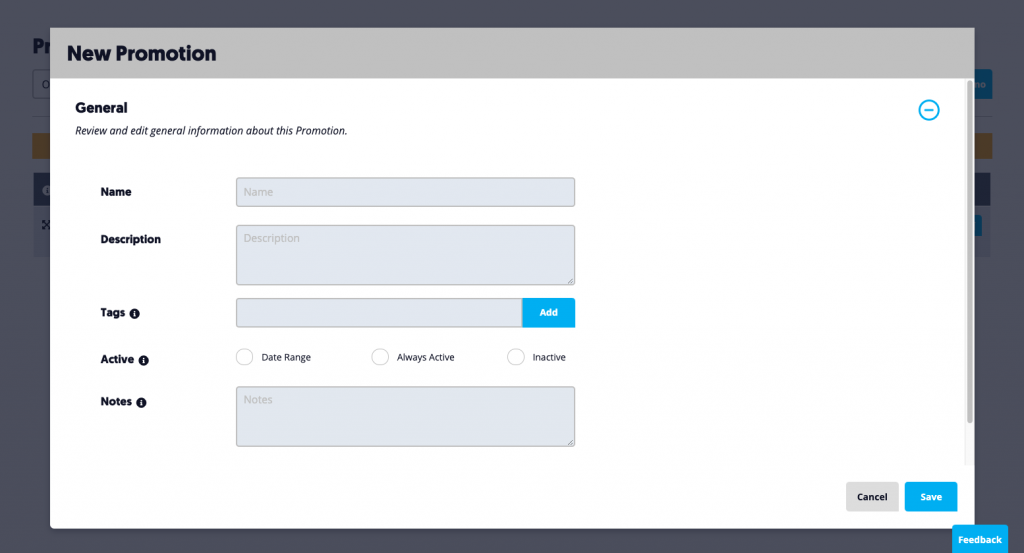
8. You’ll then need to add at least one promotion rule. Promotion rules determine what products are affected by this promotion, and what the discount will actually be.
9. Within a promotion rule, you’ll have the ability to edit all of the following:
General
In General, you can set a Name and Description for your promotion rule. These are simply for internal use so you can keep track of what each rule is for.
Suppliers
In Suppliers, you can determine which of your Suppliers should be impacted by this promotion rule. By default, the “All” option will be selected. If you have not imported any Supplier data, you can leave this Setting alone.
Tire Filters
If you want to apply this promotion rule to tires in your catalog, click “Apply to Tires”. From here, you will then be able to specify which portions of your tire catalog you want to be impacted by this promotion rule by using a number of filters, including:
- Brands (“All” selected by default)
- Models (“All” selected by default)
- Part Numbers
- Tire Type (Passenger, Light Truck, etc.)
- Attributes (All Season, Performance, Winter, etc.; “All” selected by default)
- Sizes (“All” selected by default)
Wheel Filters
If you want to apply this promotion rule to wheels in your catalog, click “Apply to Wheels”. From here, you will then be able to specify which portions of your wheel catalog you want to be impacted by this promotion rule by using a number of filters, including:
- Brands (“All” selected by default)
- Models (“All” selected by default)
- Part Numbers
- Sizes (“All” selected by default)
Pricing
Last but not least, you’ll need to configure the pricing details of your promotion rule. First, you’ll want to select the type of discount you want to apply:
- Percentage – Calculate a discount on the product price using a % value.
- Value – Calculate a discount on the product price using a fixed value.
Next, you’ll need to click “Add Filter Range”. You can add multiple Filter Ranges within a single promotion rule, if needed. Within each Filter Range that you add, you’ll be able to set the following:
- Price Filter Min & Max – Set the minimum and maximum product price that should be included in this calculation.
- Amount – Set the value for your discount (either a % or a fixed value depending on which type you selected above).
Once you’re done editing all of the settings for your promotion rule, click “Save” in the bottom right-hand corner.