
With the Services tool, you can create and manage additional services you want to offer to your customers. For example, you could create a service called Tire Installation and configure it to be available whenever a customer selects a tire. This article provides an overview on how to use the Services tool in RideStyler (currently only available to Enterprise customers).
Getting Started
1. Login to account.ridestyler.com.
2. In the left-hand menu, click on Manage and then click on Services.
3. If you, or someone on your team, have already created services, you’ll see them in the table on this page. You can click “View” to review and edit the details of any existing service (we’ll get into the details on your options starting in Step 6). You can also toggle the “Enabled” option on and off; when toggled off, all of the service’s information will be preserved in case you want to toggle it back on later.
4. To create a new service, click the “Add Service” button in the top right-hand corner of the page.
5. In the window that appears, you’ll be presented with all of the settings for this service. We’ll dive into each below.
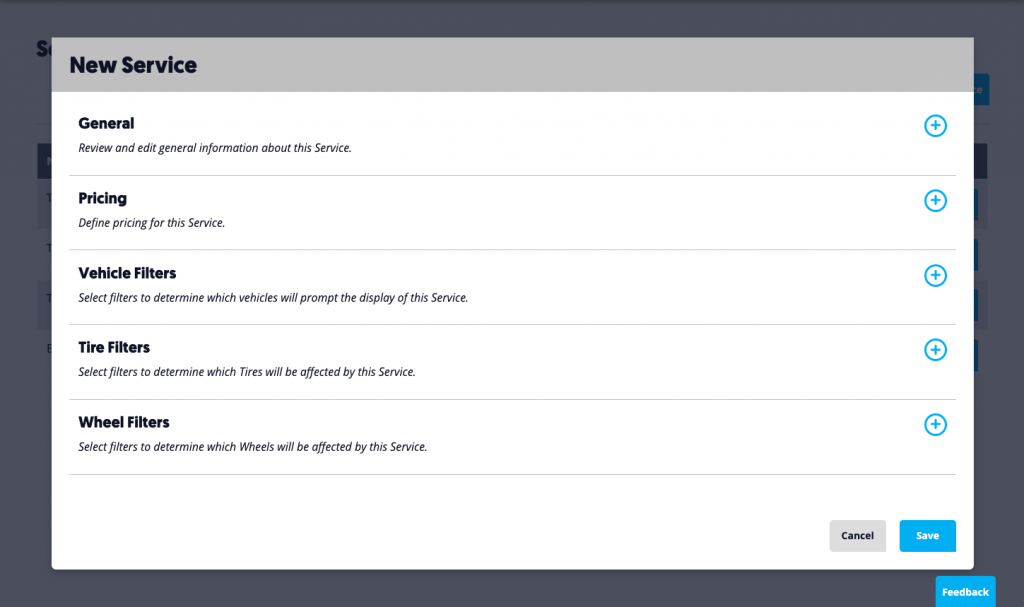
General
In General, you can set a Name and Description for this service, along with the following:
- Link: Optional field to associate a URL with this service (for example, if you want to let the customer “Learn More” about the service).
- Image: Optional field to associate an image/icon with this service.
- Time: Optional field to set a length for this service (e.g. communicate to your customers that an Oil Change takes 30 minutes).
- Required: Making a service “required” means that an end customer is required to accept this service (e.g. “Tire Disposal Fee” may be a required service for a customer ordering new tires from you).
- Filter Match: This setting determines the “customer conditions” that must be met for a service to be applicable. More details can be found under “Conditions & Filters” later in this article.
Pricing
In Pricing, you can specify whether this service should have a cost associated with it, or if it should be free. If it is a paid service, you can then specify an amount and set whether or not the amount is a fixed total or per product.
Conditions & Filters
Depending on what you selected for your “Filter Match” setting (see General section above), you will have different filter categories available to you (possible options include Vehicle, Tire and Wheel categories). Within each filter category, you can then set specific filters to narrow down what products from that category will “trigger” the service.
Here is a quick breakdown of each Filter Match setting option:
- Any: This option will make all filter categories available. The service will be applicable if the customer condition matches any filter (Vehicle, Tire or Wheel).
- Wheel: This option will only enable the Wheel filter category. The customer condition must include a wheel that matches your filters.
- Tire: This option will only enable the Tire filter category. The customer condition must include a tire that matches your filters.
- Wheel & Tire Package: This option will enable both the Tire and Wheel filter categories. The customer condition must include both a wheel and a tire that match your filters.
- Vehicle with Wheel or Tire: This option will enable all 3 filter categories. The customer condition must include a vehicle and either a wheel or a tire that match your filters (but not necessarily both).
- Vehicle with Wheel: This option will enable the Vehicle and Wheel categories. The customer condition must include a vehicle and a wheel that match your filters.
- Vehicle with Tire: This option will enable the Vehicle and Tire filter categories. The customer condition must include a vehicle and a tire that match your filters.
- Vehicle with Wheel & Tire Package: This option will enable all 3 filter categories. The customer condition must include a vehicle, wheel and a tire that match your filters.
Finally, here’s an overview of the filter options within each filter category.
Vehicle Filters
- Vehicle Years
Tire Filters
- Brands (“All” selected by default)
- Models (“All” selected by default)
- Part Numbers
- Tire Type (Passenger or Light Truck)
- Attributes (All Season, Performance, Winter, etc.; “All” selected by default)
- Sizes (“All” selected by default)
Wheel Filters
- Brands (“All” selected by default)
- Models (“All” selected by default)
- Part Numbers
- Sizes (“All” selected by default)
Once you’re done editing all of the settings for your Service, click “Save” in the bottom right-hand corner.